> ## Documentation Index
> Fetch the complete documentation index at: https://docs.usegizmo.com/llms.txt
> Use this file to discover all available pages before exploring further.
# Integrate with CRM & Phone
Using Gizmo for [CRM & Phone](/origination-desk/index) is recommended for the best experience and requires zero configuration. This page is for customers who are using an external system.
You can fully integrate a 3rd-party CRM & Phone System with just a few quick steps.
## Add your Lead Sources
For each lead provider you will have leads coming in from, you need to add a new lead provider in your [Lead Provider Settings](https://app.usegizmo.com/settings/leads).
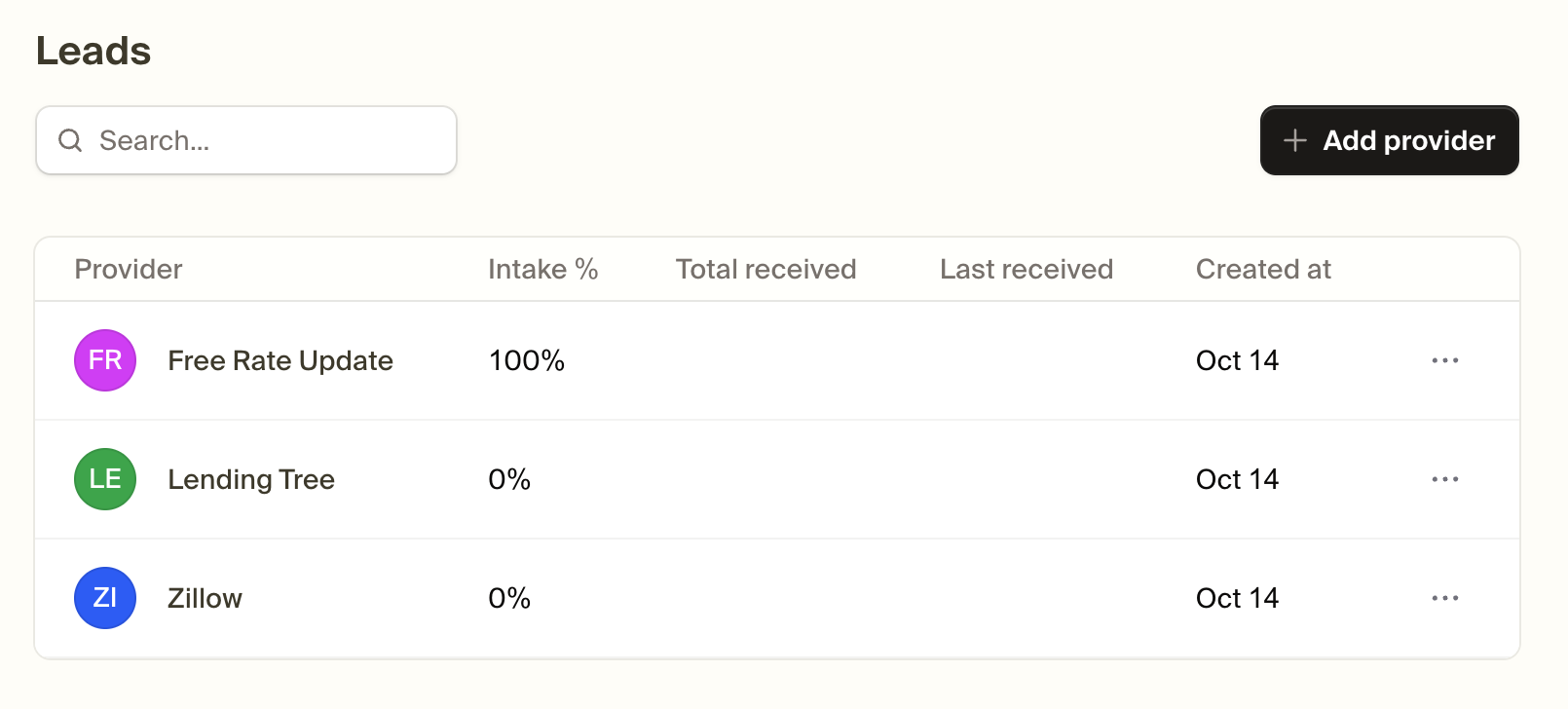 Make sure the "slug" for each provider matches the slug in your external system.
## Create an API Key
Go to your [API Keys](https://app.usegizmo.com/settings/api-keys) in your dashboard and create a new API key.
Copy and paste the value, store it somewhere secure and share it with the developer who will be setting up the integration.
## Forward leads to Gizmo
When each lead arrives in your external system, you will need to forward them to Gizmo via our API.
Developers can use our [API Documentation](/api/reference) to easily build & test the integration.
## Set up an inbound transfer number
In your phone system, you will need to create a new inbound transfer number for Gizmo to transfer calls to.
Add this number in your [Agents Dashboard](https://app.usegizmo.com/agents/settings) under the "Inbound Transfer Number" setting.
Make sure the "slug" for each provider matches the slug in your external system.
## Create an API Key
Go to your [API Keys](https://app.usegizmo.com/settings/api-keys) in your dashboard and create a new API key.
Copy and paste the value, store it somewhere secure and share it with the developer who will be setting up the integration.
## Forward leads to Gizmo
When each lead arrives in your external system, you will need to forward them to Gizmo via our API.
Developers can use our [API Documentation](/api/reference) to easily build & test the integration.
## Set up an inbound transfer number
In your phone system, you will need to create a new inbound transfer number for Gizmo to transfer calls to.
Add this number in your [Agents Dashboard](https://app.usegizmo.com/agents/settings) under the "Inbound Transfer Number" setting.
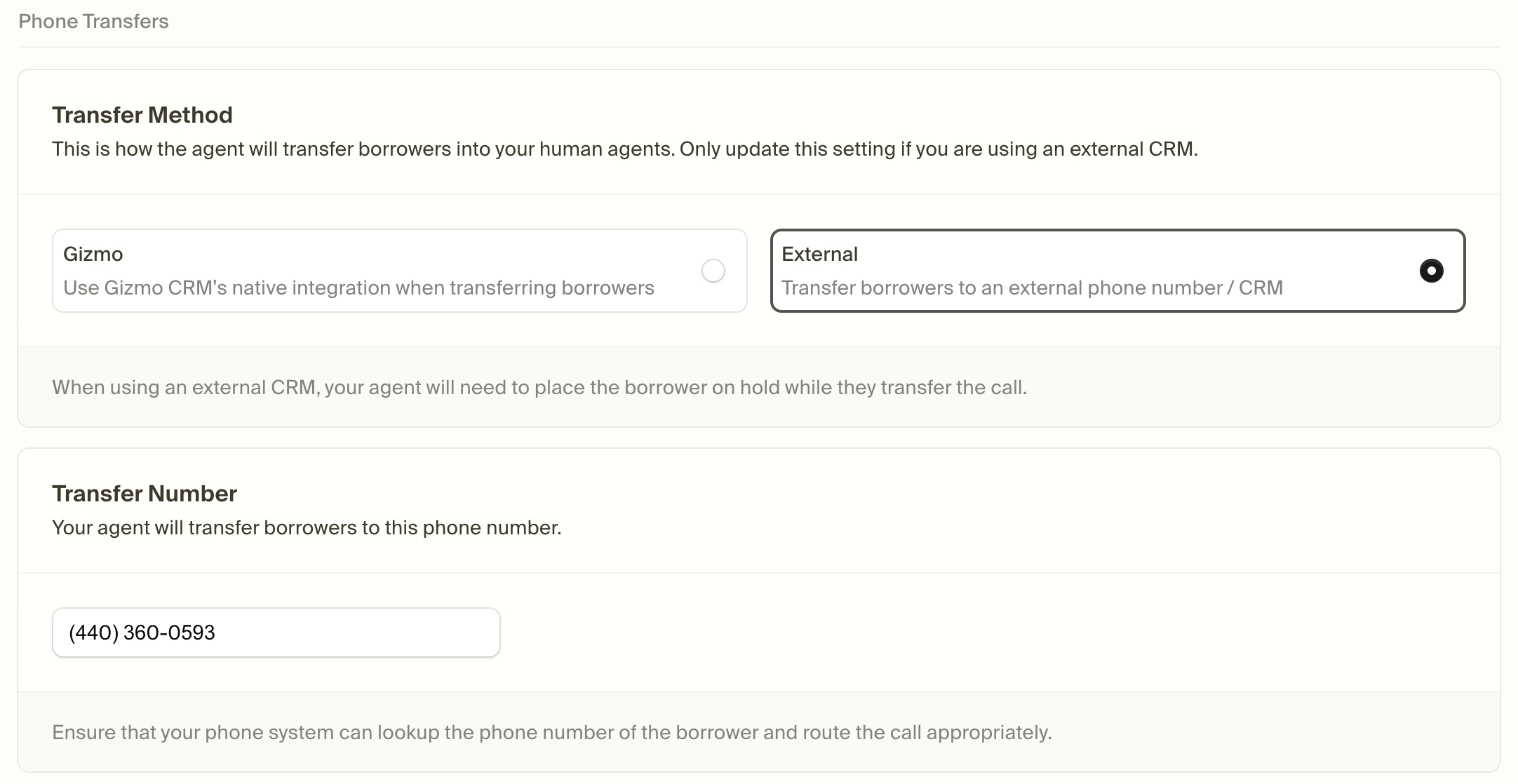 When a transfer comes in from Gizmo, the Caller ID will be the **borrower's** phone number.
Use this number to look up the lead in your CRM and display helpful information to your loan officers.
## Keep the lead status up to date
Using the [Gizmo API](/api-reference), you can update leads after key events occur.
Updating the record in Gizmo after these events will ensure the agents behave as expected and remain compliant.
| Event | Action |
| :--------------------------- | :------------------------------------ |
| Credit is pulled | Update the status to "CREDIT\_PULLED" |
| Loan is submitted to process | Update the status to "PROCESSING" |
| Lead is withdrawn | Update the status to "WITHDRAWN" |
Full documentation including example requests are available in our [API Reference](/api-reference).
When a transfer comes in from Gizmo, the Caller ID will be the **borrower's** phone number.
Use this number to look up the lead in your CRM and display helpful information to your loan officers.
## Keep the lead status up to date
Using the [Gizmo API](/api-reference), you can update leads after key events occur.
Updating the record in Gizmo after these events will ensure the agents behave as expected and remain compliant.
| Event | Action |
| :--------------------------- | :------------------------------------ |
| Credit is pulled | Update the status to "CREDIT\_PULLED" |
| Loan is submitted to process | Update the status to "PROCESSING" |
| Lead is withdrawn | Update the status to "WITHDRAWN" |
Full documentation including example requests are available in our [API Reference](/api-reference).